
Curious how work really flows through your delivery process? If you’d like a second set of eyes on your workflow, we’re offering a free flow metrics review. Generate a report using the app and send it to us. We’ll review it and share our observations.
There’s no cost and no obligation — just useful insights based on your team’s real data.
What You’ll Receive
- Identification of possible workflow bottlenecks
- Observations about cycle time and throughput
- Suggestions to improve delivery flow
Seven simple steps to your free flow review
Typical time from install to send: 10 minutes
2. Run the App
When you start the app for the first time it will automatically generate workflow maps based on your Jira boards and columns.
3. Select a map
Choose the generated workflow map for the project that you want to examine. See Flow Report Steps below.
4. Review map
Review the map for accuracy. Amend the map if needed to better represent how work moves through your process. See Flow Report Steps below.
5. Run Query
Run a query to analyse work items over a chosen time period. See Flow Report Steps below.
6. Download Report
Once the analysis is complete, generate your Flow Metrics Report. See Flow Report Steps below.
7. send report for review
Email the PDF report to: support@deliveryflow.net
Include any context you would like us to know (optional). We’ll review the report and reply with observations about your workflow and potential improvement opportunities. There is no sensitive information in the report, only metrics and graphs.
Flow Report Steps
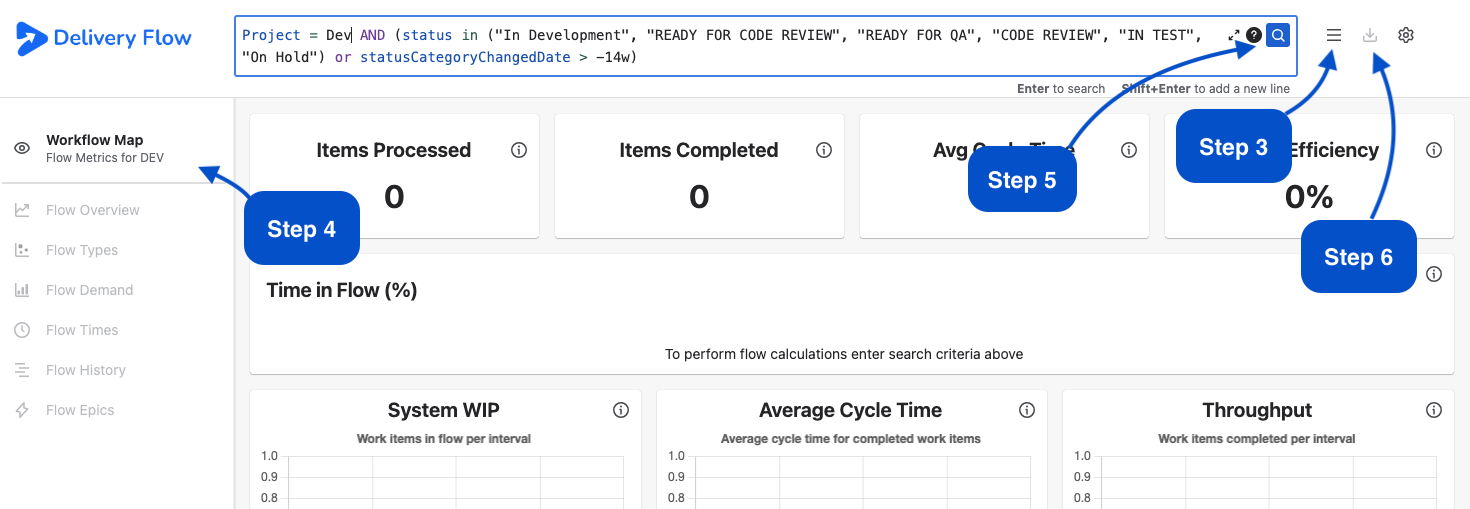
Steps to create and download your Flow Report
Notes
Step 2
In Delivery Flow, workflow maps are crucial, as they allow Delivery Flow to understand the process your issues must follow to achieve completion. When you run the app for the first time, Delivery Flow will auto-generate 10 Workflow maps based on the 10 most recently updated projects in your Jira instance. These maps will be based on the projects board, lane statuses and status categories. After a map is generated, if it does not align with your needs, the site administrator has the ability to modify it or create alternative maps.
Step 3
When you open the app, an auto-generated map is loaded and its recommend JQL query appears in the query bar, ready for execution. The selected map appears at the top of the left sidebar. To use a different map, click “Workflow Maps” next to the query bar. From the dropdown menu, select your desired map.
Step 4
You can review the details of the selected Workflow Map by clicking on the map name at the top of the left sidebar. If the map does not accurately reflect your process then an administrator can amend the map or you can select another map. An Administrator can edit maps via Apps> Manage apps > Delivery Flow Admin> Workflow Maps
Step 5
When you select a workflow map, Delivery Flow populates the query bar with a JQL query statement set by the map creator. If this query does not meet your needs, adjust it. If unsure, run the recommended query first, review results, then modify. To execute the query, press Enter or click the Search icon in the query bar. Delivery Flow retrieves all issues defined by the query and calculates relevant flow metrics.